
As a ValidSign user, you can see in your dashboard which documents you still have to sign. Make sure that your dashboard is on the signer display.
If there are many transactions that require your signature, signing from the dashboard works faster and more user-friendly than when you start a signature from the email. If you have signed one transaction, you will immediately be asked to sign the next transaction.
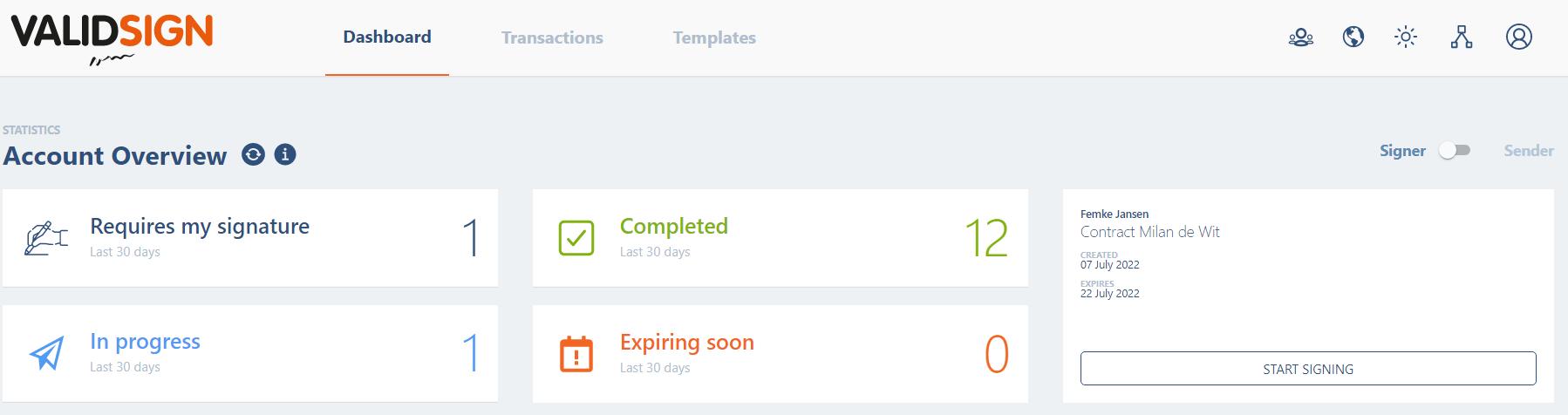
By clicking on "Requires my signature" you will be taken to the screen with all the documents that have yet to be signed by you.

You can click on the transaction name and you will enter the transaction. You get the a message to sign the transaction.
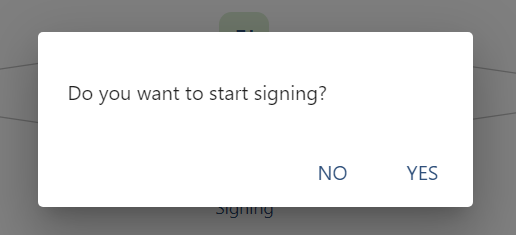

You must then confirm the signature by clicking "Confirm".

When you click "Confirm", the document is signed. You will be redirected to the transaction overview. Here you can see that the document is signed.
Do you have any questions about signing a document using your dashboard? Please contact us. This can be done via support@validsign.eu or 085 303 36 76.