
GETTING STARTED
Logging in to the ValidSign portal
To prepare and send documents for signature you sign in to the ValidSign portal in your web browser. ValidSign has two environments: a live environment for real, legally binding transactions and a separate test environment for trying things out. This article shows you how to sign in and what to do if you cannot get in.
Before you begin
A ValidSign user account. If you do not have one yet, an administrator in your organization creates it for you.
The email address your account is registered with.
Step-by-step guide
Open the ValidSign portal. Go to my.validsign.eu for the live environment. To work in the test/sandbox environment instead, go to try.validsign.eu.
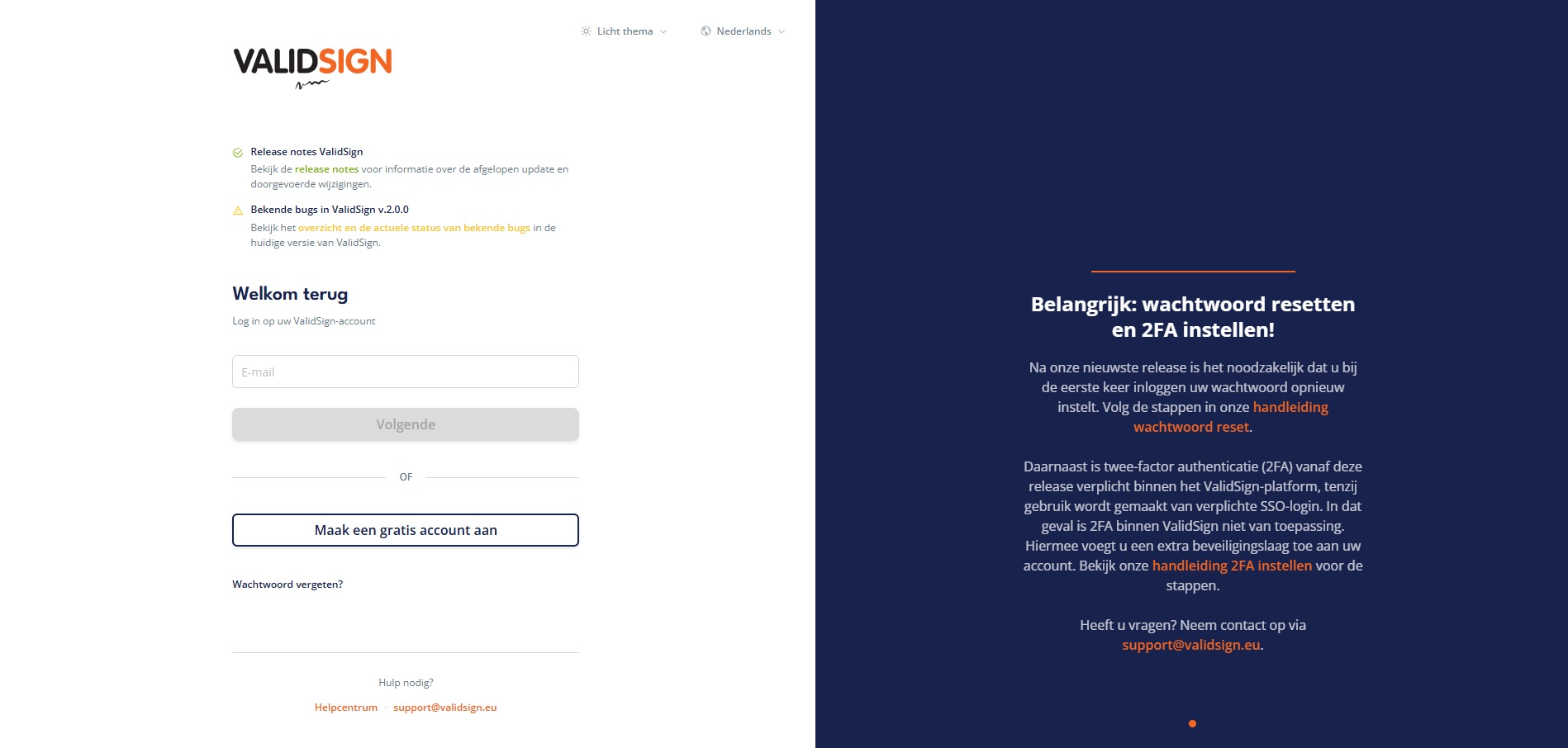
Screenshot: The ValidSign login page at my.validsign.eu.
Sign in with your email and password. Enter the email address your account is registered with and your password, then confirm to open your dashboard.
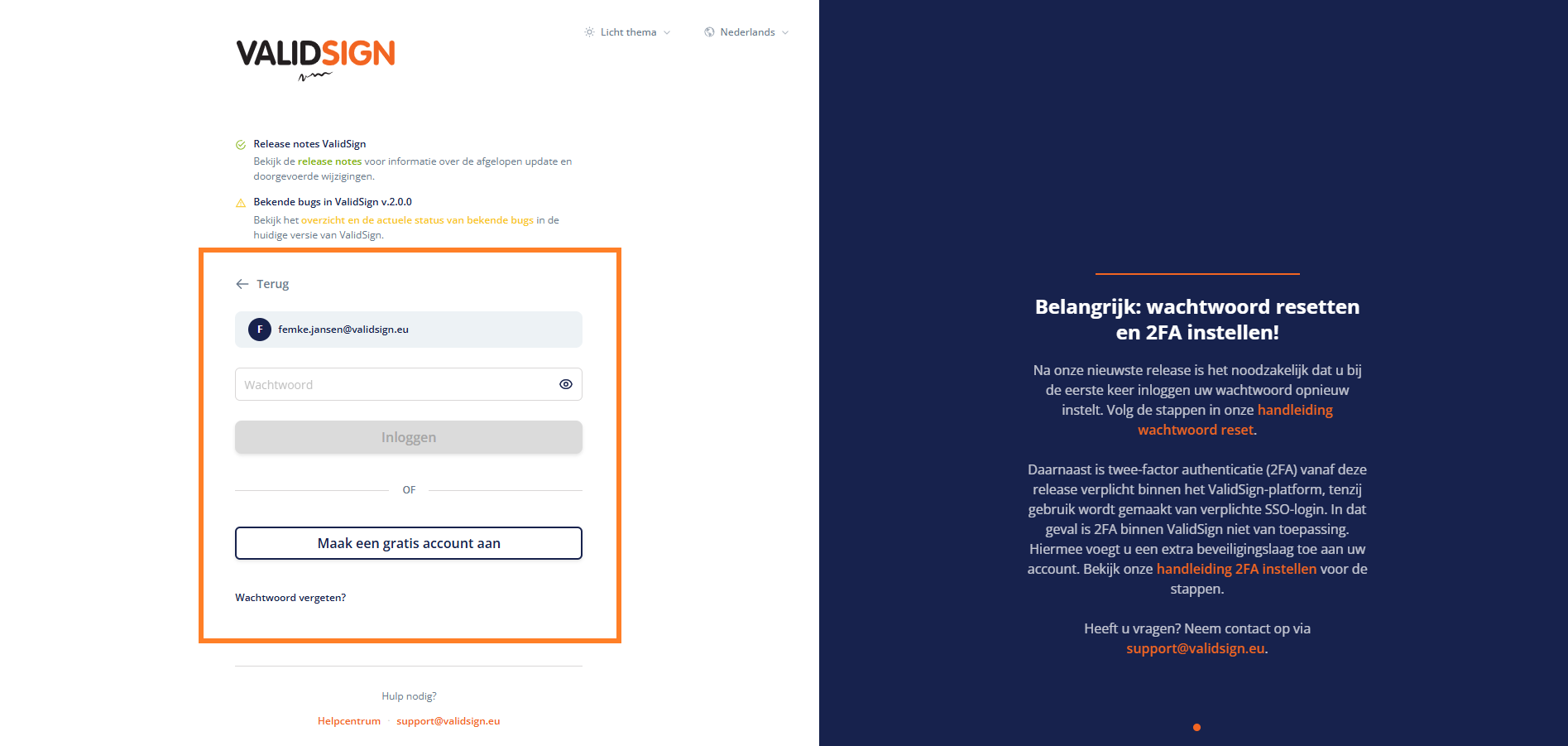
Screenshot: The login form with the email and password fields.
Or sign in with single sign-on (SSO). If your organization uses SSO, sign in through your organization's login instead of a ValidSign password. Your administrator can tell you whether SSO is set up for your account.
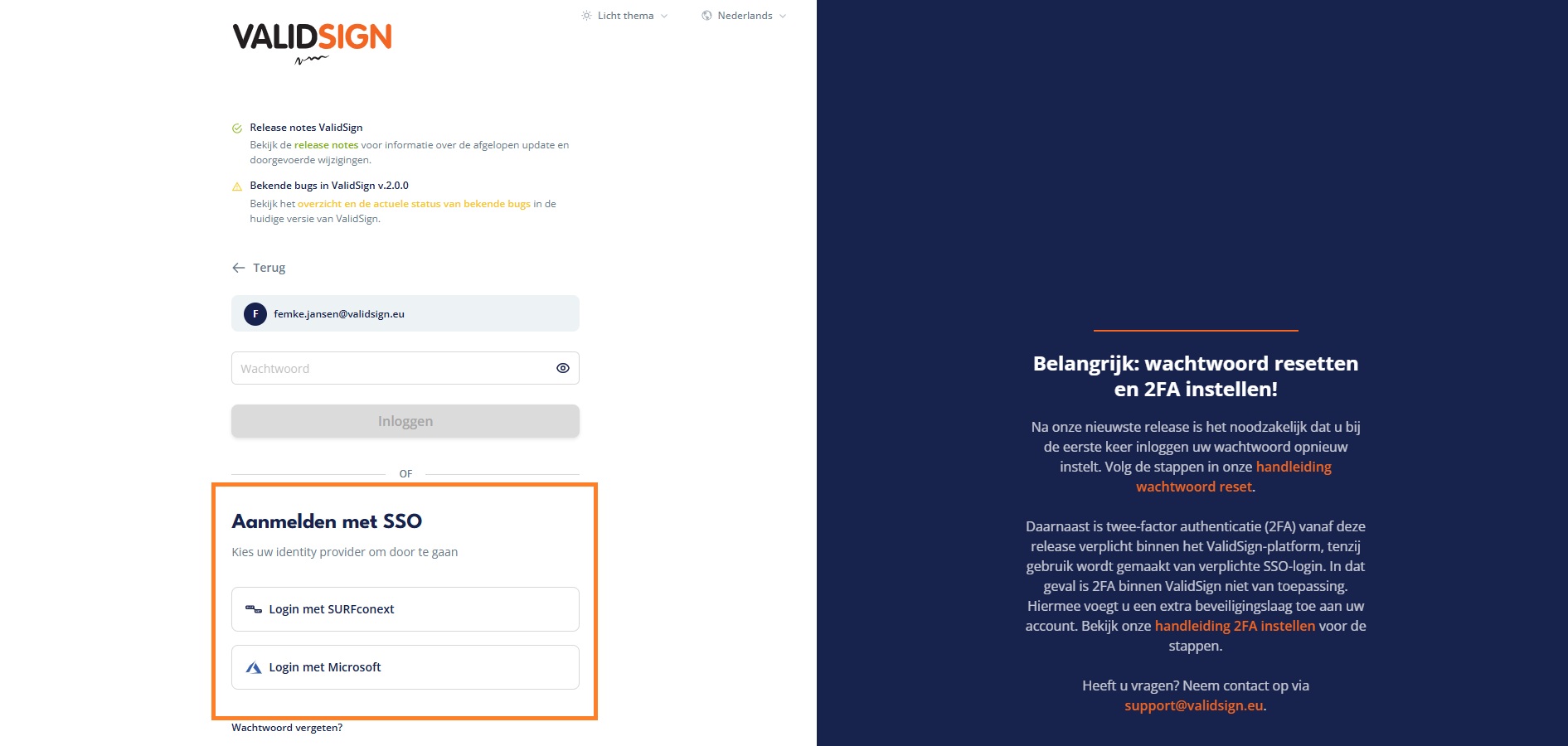
Screenshot: The single sign-on (SSO) option on the login page.
Good to know
Use my.validsign.eu for real signing. Anything you send from try.validsign.eu is for testing only and has no legal value.
If you cannot sign in, first check that you are using the right web address and the email your account is registered with.
Too many failed attempts can temporarily lock an account. Use the password-reset option on the login page to set a new password.
If you are still locked out, contact your ValidSign administrator or ValidSign support.