
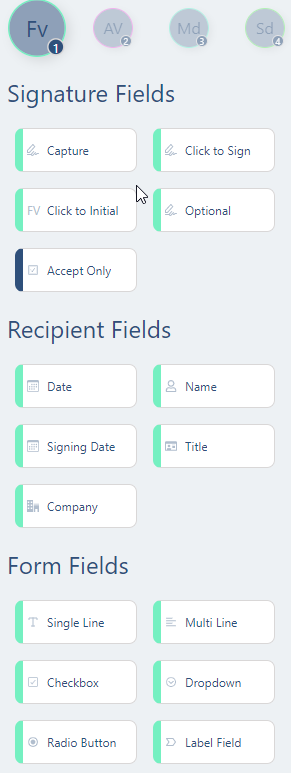
All fields except "Signature" and "Initials" remain grayed out as long as no signature field has been added to the document. The operation of all the different options below is further explained below:
Text field

By placing this field you give the recipient the choice to enter a specific text here. The text that is filled in will be placed on one line
Text box
As with the text field, you give the recipient the choice to enter a specific text here. Unlike the text field, the text in the text box does not flow into one line, but the text automatically jumps to the next line (depending on the size of the text box).
Check box

This allows you to let the recipient make a choice. This is useful for quotations where you give the recipient various options. You can place the check box for an optional quote line. The recipient can choose to check the box or leave it empty
Radio button

This gives the recipient a choice again. By adding multiple choices, the recipient can click on the desired circle. After signing is complete, you will see the circle ticked by the recipient.
List
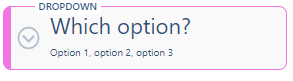
You can also let the recipient make a choice based on the list. As a sender, you can add options to the list. The recipient can then click on the desired choice. By clicking on the gear wheel next to the list field, you will enter the screen where you can change the field settings (see example). You can add multiple options to the list by typing "Enter" after each option.

Label field
Text-tags
You can also have all these fields automatically included in your document by using Text-tags . This is a piece of code that you place in your document. This code is then automatically read after uploading the document. Using text tags can be useful if you want to submit the same document for signature more often, but where the content of the document is unique to the recipient.